Installing the SST software
If you have a high resolution monitor and are running Windows 10 you will sometimes have an issue with the font of SST being to small. If this happens navigate to the following directory using Windows file explorer “c:\Program Files\Superior Swim Timing\SST Timer”. Next, left click and then right click on “SST 64.exe” and left click on “Properties”. Click on the “Compatibility” tab and then click on “Change high DPI settings”. Check the box for “Override high DPI scaling behavior”. For the Application, select “System”. Click “OK” to exit the properties box and apply changes.

In rare cases you may get the following error the first time you try and start the SST software:

In this case, right click on the SST desktop Icon and then left click on “Properties”. In the “Start in” field enter ”%HOMEPATH%\DOCUMENTS\SST\”, without the quotes. Then click “OK”,
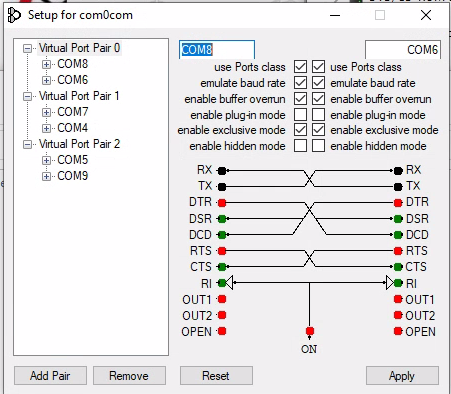
- Your application can hang-up because receive buffer overrun is disabled by
default. You can fix the problem by enabling receive buffer overrun for the
receiving port. Also, to prevent some flow control issues you need to enable
baud rate emulation for the sending port.